9.2. DS-PAW Example
DS-PAW is a first-principles plane wave calculation software under the Device Studio platform, using plane waves as basis functions, and the pseudopotential is constructed using the Projector Augmented Wave method. DS-PAW is powerful and can be applied to different scenarios, such as metals, semiconductors, insulators, surfaces, magnetic, non-magnetic, lithium batteries, etc.; it can accurately predict material electron distribution; it can perform atomic geometric structure optimization; it can be widely applied in materials science. DS-PAW has stable performance, having undergone millions of internal test cases on Intel chips and domestic Haiguang chips, including various functions and parallel efficiency.
As shown in fig. 9.9, DS-PAW 2021B version has implemented 28 calculation functions including structure relaxation, electronic structure, mechanical properties, magnetic calculations, transition states, hybrid functionals, van der Waals corrections, optical properties, spin-orbit coupling, phonon calculations, strongly correlated calculations, first-principles molecular dynamics, and more functions are still being added.
Taking Si crystal structure hybrid functional band calculation as an example to describe DS-PAW application in Device Studio in detail.

fig. 9.9 DS-PAW Software Function Diagram
9.2.1. DS-PAW Calculation Process
The DS-PAW calculation process in Device Studio is shown in fig. 9.10.

fig. 9.10 DS-PAW Calculation Process
9.2.2. DS-PAW Project Creation
Double-click the Device Studio icon shortcut, log in and start Device Studio. In the create or open project interface (Graphical interface for selecting to create or open a project after starting the software), according to the interface prompts, select the button to create a new project (Create a new Project) or open an existing project (Open an existing Project), then click the OK button in the interface. If choosing to create a new project, users can name the project according to their needs, such as naming this project DS-PAW, or use the software’s default project name.
9.2.3. DS-PAW Structure Import
In the Device Studio graphical interface, click File → Import → Import Local, which will open the interface for importing DS-PAW structure files. According to the interface prompts, find the location of the Si.hzw structure file, select the Si.hzw structure file, click the Open button, then the Device Studio interface after importing the Si.hzw structure is shown in fig. 9.11. Other methods for importing structures in Device Studio are not detailed here, users can refer to the Import Structure section.
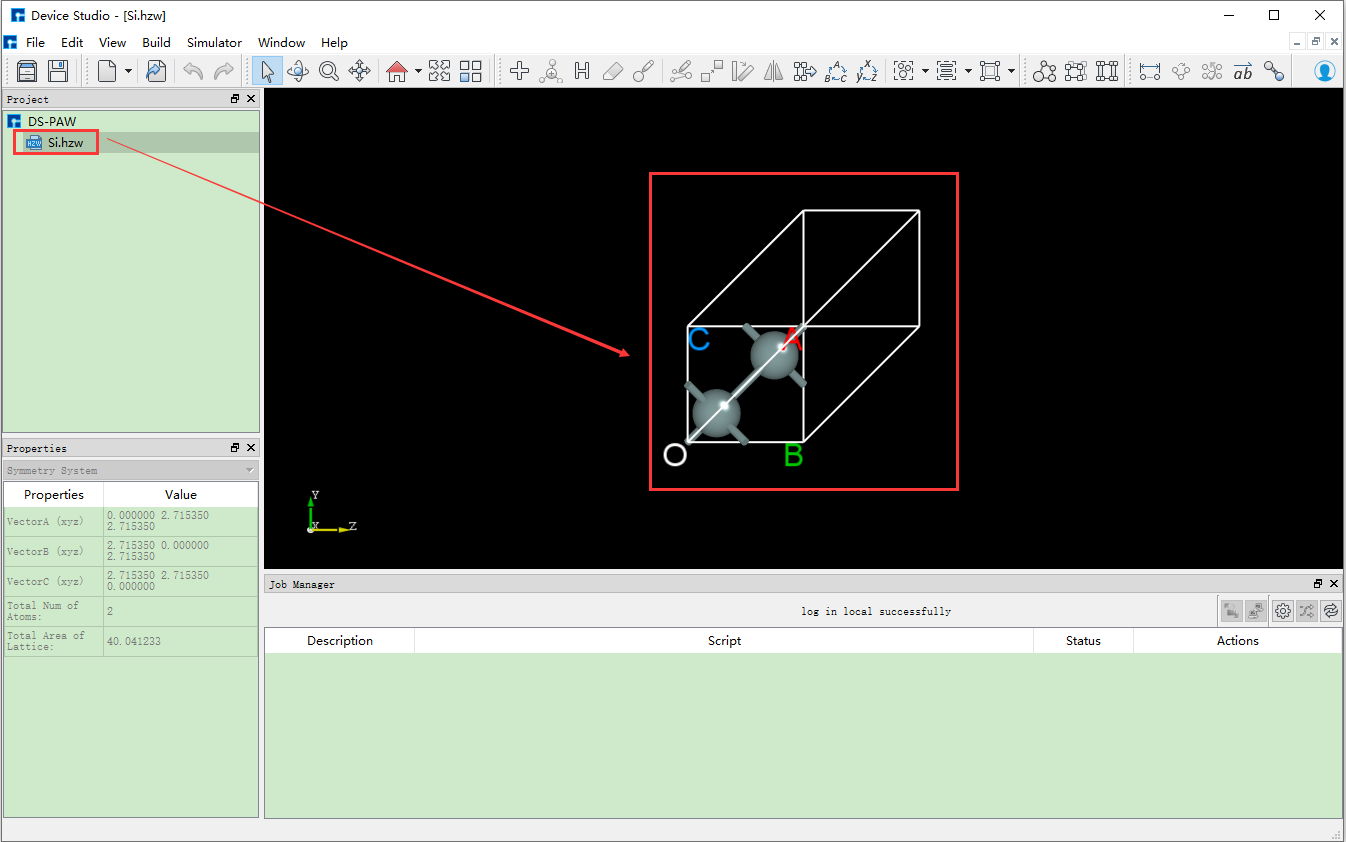
fig. 9.11 Device Studio Graphical Interface After Importing Si.hzw Structure
9.2.4. DS-PAW Input File Generation
In the interface shown in fig. 9.11, select Simulator → DS-PAW → Electronic Structure, which will open the DS-PAW parameter settings interface Electronic structure as shown in fig. 9.12. The Electronic structure interface is mainly divided into four modules: Task, Solver setting, Physical setting, and Advanced. Users can set parameters by clicking the four modules in sequence according to calculation needs, then click Generate files to generate the corresponding calculation input files.

fig. 9.12 DS-PAW Parameter Settings Interface Electronic structure
Taking the generation of input files for Si crystal structure hybrid functional band calculation as an example, in the Electronic structure interface shown in fig. 9.12, according to calculation needs, select Task, Solver setting, Physical setting, and Advanced respectively, set parameters as shown in fig. 9.13, fig. 9.14, fig. 9.15, and fig. 9.16 respectively, then click Generate files in the interface to generate the input files scf.in and structure.

fig. 9.13 Task Parameter Settings Interface

fig. 9.14 Solver Setting Parameter Settings Interface

fig. 9.15 Physical Setting Parameter Settings Interface

fig. 9.16 Advanced Parameter Settings Interface
The Device Studio interface for generating input files scf.in and structure for Si crystal structure hybrid functional band calculation is shown in fig. 9.17.

fig. 9.17 Device Studio Interface for Generating Si crystal structure hybrid functional band calculation Input Files
9.2.5. DS-PAW Calculation
Before performing the Si crystal structure hybrid functional band calculation, you need to connect to a local computer or server with DS-PAW installed. The specific connection process is not explained in detail here, users can refer to the Nanodcal Connect to Server section content. Taking calculation on a local computer as an example, after connecting to the local computer with DS-PAW installed, before performing the calculation, users can open the input files and check if the parameter settings in the files are reasonable according to their needs. If not reasonable, they can choose to edit directly in the files or regenerate, and finally perform the DS-PAW calculation. For example, to open the scf.in file, in the Device Studio’s Project Explorer area, select scf.in → right-click → Open with to view the scf.in file as shown in fig. 9.18. For other input files, users can choose whether to open and view them according to their needs, which is not explained in detail here.
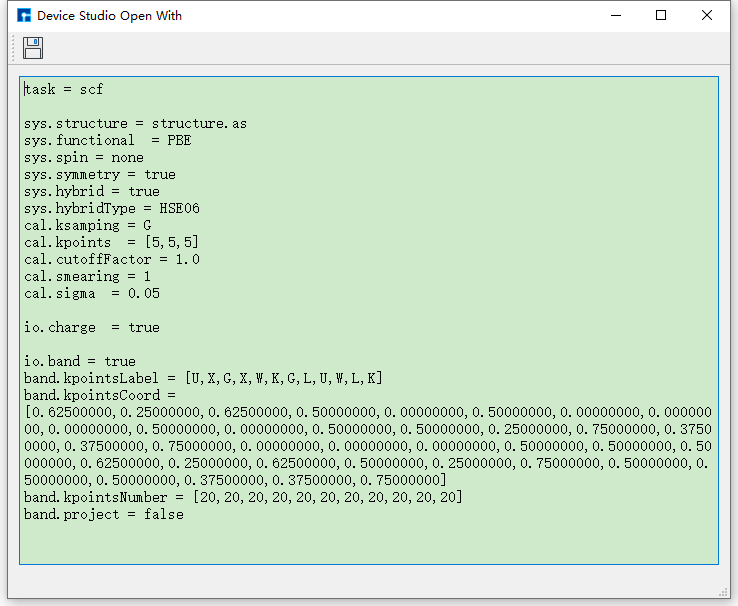
fig. 9.18 scf.in File
In the interface shown in fig. 9.17, in the Device Studio’s Project Explorer area, select scf.in → right-click → Run, which will pop up the Run interface. In the Run interface, click the Run button to perform the DS-PAW calculation. Users can observe the DS-PAW calculation status in the Job Manager area. When the DS-PAW calculation task is in the queue, in progress, or completed, Status is Queued, Running, Finished respectively. After the calculation is completed, the result file band.json and log file DS-PAW.log can be seen in the Device Studio’s Project Explorer area.
9.2.6. DS-PAW Results Visualization
In the Device Studio’s Project Explorer area, select band.json → right-click → Show View, which will pop up the DS-PAW results visualization interface as shown in fig. 9.19.

fig. 9.19 DS-PAW Results Visualization Interface
Note
DS-PAW calculation results are often stored in .json or .h5 format. Currently, Device Studio supports visualization analysis of DS-PAW result files in .json format smaller than 68MB. For .json files larger than 68MB, it is recommended that users use the DS-PAW auxiliary toolkit dspawpy for data analysis.